Tips & Tricks for an Advent Calendar with SCNX
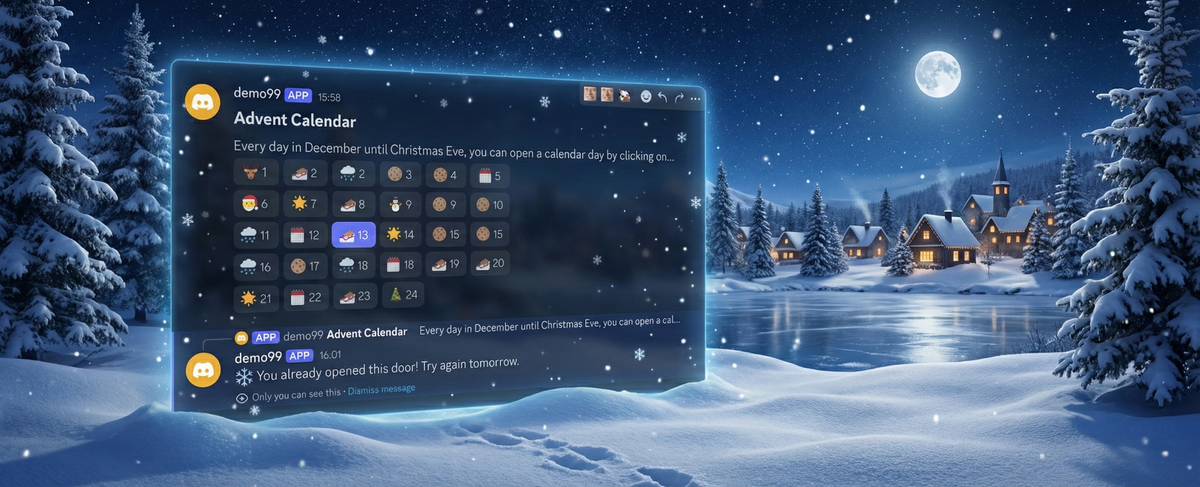
December is starting soon - and with it, many people are opening a door every day until Christmas again. This year, you too can offer your members a virtual Advent Calendar - filled by yourself: This is very easy and free with our new "Winter Holidays"-module.
Setting up the module
- To activate the module, visit the module page of your server, search for the module "Winter Holidays" and activate it by toggling the switch (see screenshot). Then open the configuration with the "Open configuration" button (select "Advent Calendar").
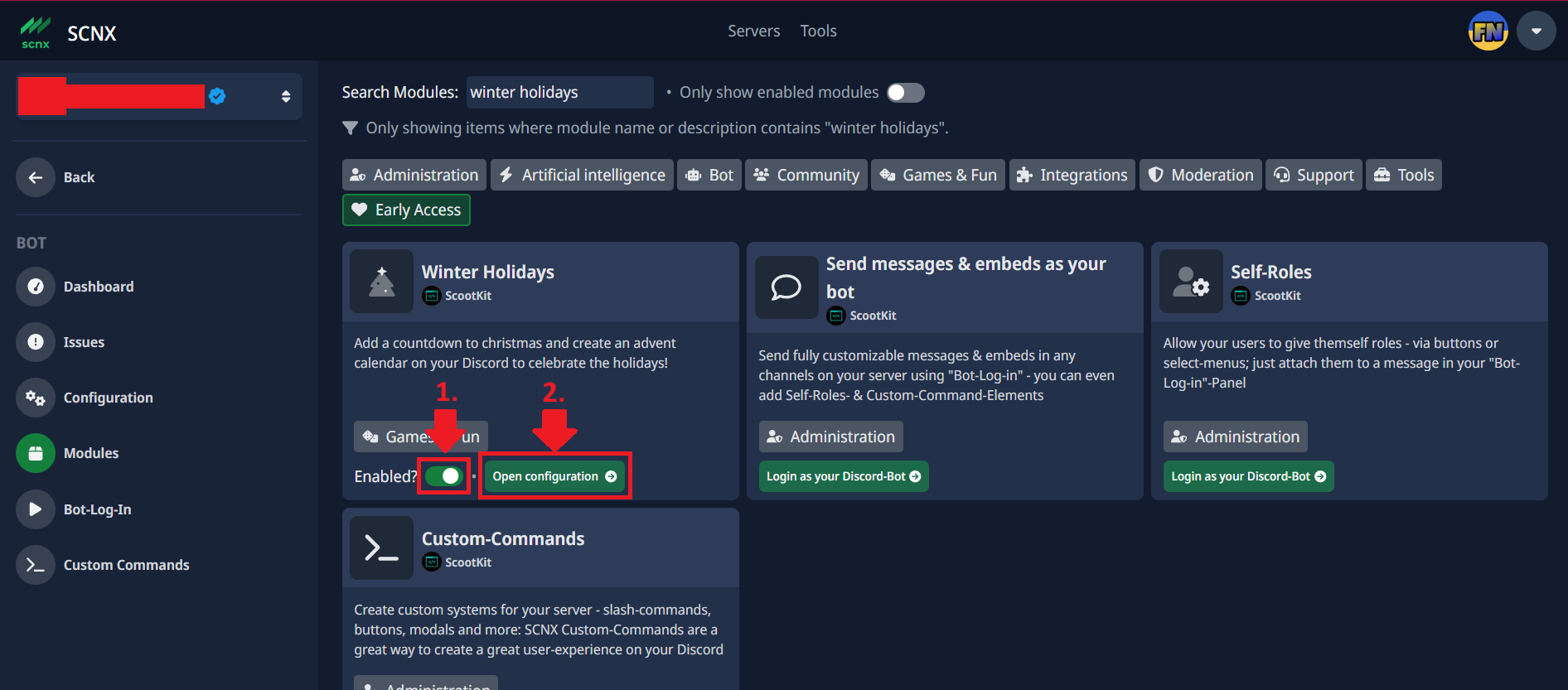
- To activate the Advent Calendar part of the module, you have to enable the "Enabled?" switch.
- Configure the basic settings:
- For "Advent Calendar Channel", select an empty channel into which the Advent Calendar will be sent.
- For "Calendar Message", you can customize the Advent Calendar message. Please note that 24 buttons (for the 24 doors) are automatically appended to the message. In the message, you can use the parameters %day% (inserts the current day into the message) and %totalOpened% (indicates as a number how many doors have already been opened).
- For ""Already opened" message", you can customize the message that a user receives as an error message when they try to open a door that has already been opened. This message is private, i.e., only the user who tries to open the same door multiple times sees it.
- For "Reward role for opening all doors (optional)", you can define roles that users receive when they have opened all 24 doors.
Configure the different messages for each day. In the configuration field "Day X Opening Message", you can configure the message for the day that is displayed to users when they open the door. For "Day X Reward Roles (optional)", you can optionally define roles that a user receives when they open the respective door.
What can I hide behind the doors?
There are no limits to your creativity here. We have nevertheless compiled some suggestions for what you can hide behind the doors here:
- A nice greeting message: You can certainly sweeten the day for many users with a small greeting message behind the door. If you don't know what to write, you can also add a small poem.
Dynamic images also work in the Advent Calendar messages. This allows you to create images that incorporate current details. For example, you could generate an image with a winter landscape in the background and the text "Happy First Advent, [Username]!". You can find more information about dynamic images here.
- A voucher code for your online shop: If you sell things on your server, you can hide a voucher code for users in a door. This pleases users and increases your revenue.
- XP Boost: If you use the SCNX Level System module, you can create a role and configure it as an "XP Multiplier Role" in the dashboard (more help on this here). If you now hide this role as a reward role behind a door, users receive more XP per message / time spent in the voice channel after opening it.
Remember to delete the role at the end of the day and remove the XP multiplier in the dashboard or remove the role from all users so that they do not continue to receive the XP boost. - Giveaway participation: You can assign users a role (as described above) that gives them access to an extra channel. Here you can - e.g. with the Giveaways module from SCNX - organize a giveaway and raffle off a small item. This way, only truly active and engaged members of your community are rewarded.
- Riddles: You can hide small riddles behind the doors that users have to solve. It is especially interesting for your users if you combine this point with the next one. To hide the riddle's solution, you can either use Discord's spoiler function (||Your text here||) or let users enter the answer using custom commands in a form (advanced).
- Connected story (advanced): You can tell a part of a story behind each door. This makes it even more exciting for users to come back every day.
Troubleshooting
Here you will find some frequently occurring errors - if your problem is not covered or cannot be solved, please do not hesitate to contact our excellent customer support.
When I open the module configuration, I receive the error message "This module could not be found or is not active"
Please check if your bot is at least on version v3.21.1, ideally on the latest version.
Restart your bot in the bot panel for this - your bot will automatically be on the latest version afterwards.
The Advent Calendar message is not sent
- Please make sure that the channel you selected is completely empty.
- Your bot needs the permissions "View Channel" and "Send Messages" on the Advent Calendar channel.
- The module must be configured without errors - please check your Issues tab for problems and otherwise feel free to contact our customer support.
Users do not receive roles
Please check if your bot has the "Manage Roles" permission and possesses a role above the role it is supposed to assign.